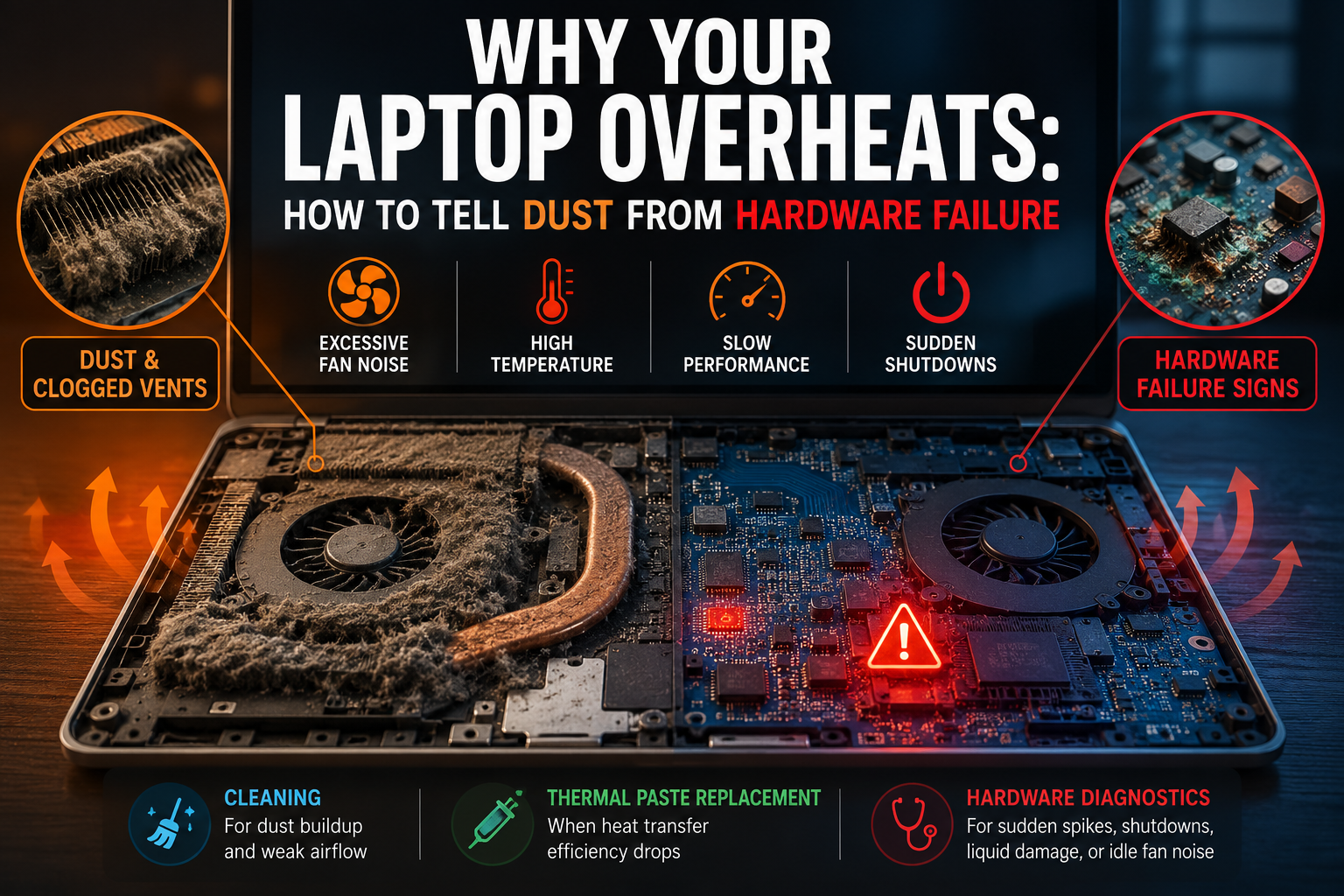
A hot laptop rarely signals a catastrophic failure. The culprit is usually simple. Accumulated dust in the heatsink, dried thermal paste, or blocked air vents cause most thermal issues. Sometimes, excessive fan noise and thermal throttling point to deeper motherboard issues, damaged power circuits, faulty temperature sensors, or liquid exposure. Knowing the difference between routine maintenance and a serious hardware fault prevents sudden shutdowns and costly repairs.
How to Identify Overheating
Manufacturers build laptops to handle heavy workloads. Higher temperatures during video editing, gaming, 3D rendering, or running virtual machines are normal. You should worry only when the device changes its behavior, like spinning up its fans and dropping performance during light tasks.
Watch for these common warning signs:
- Excessive Surface Heat: The chassis feels uncomfortably hot near the keyboard, hinge, or bottom cover.
- Constant Fan Noise: Cooling fans run continuously at maximum speed, even immediately after booting up.
- Performance Drops: The system visibly slows down under normal workloads, making everyday tasks, and even lightweight web browsing or just betting via BetLabel, feel sluggish.
- Unexpected Shutdowns: The device suddenly turns off or restarts without warning.
- Battery Strain: The battery drains quickly, or the charger area feels abnormally hot.
What Is Thermal Throttling?
Thermal throttling is an automated safety feature that lowers CPU or GPU clock speeds to keep temperatures within safe limits. This prevents hardware damage, but you will experience it as a sudden lag or performance drop.
When Standard Cleaning Solves the Problem
Most laptop cooling systems rely on a heatsink, heat pipes, and fans. Air passes through narrow channels where dust gradually collects into a dense layer. This happens rapidly if you use the device on soft surfaces like beds or couches, or in environments with pets.
Cleaning usually resolves overheating when performance declines gradually. The process typically starts with fans running more frequently, progresses to loud noise under minor loads, and eventually causes slowdowns in web browsers or demanding applications.
Signs of a Clogged Cooling System
- Fan noise increases when you launch multiple applications.
- Temperatures spike quickly under heavy loads but drop as soon as the task stops.
- The ventilation grilles produce weak airflow.
- The device has not had maintenance in over two years.
Professional technicians disassemble the case, clean the heatsink and fans, clear blocked air ducts, and inspect the fan bearings. If the design allows, they remove old thermal paste and apply fresh thermal interface material. Dried thermal paste conducts heat poorly, causing the processor to hit thermal limits rapidly.
When the Issue Goes Beyond Dust
If a laptop still runs hot and loud after a thorough cleaning, the underlying issue likely involves system control hardware. Cooling systems rely on signals from sensors and microcontrollers. If a sensor reports inaccurate readings, fans run at full speed unnecessarily. Damaged power circuits cause specific motherboard components to overheat locally, a problem basic cleaning cannot fix.
Signs of Motherboard Failure
- Fans spin at maximum speed immediately upon turning on the device.
- The laptop stays loud in standby mode with all applications closed.
- A specific internal component experiences abnormal temperature spikes.
- The device shuts down when you connect power adapters or external accessories.
- An internal inspection reveals liquid spills, corrosion, or sticky residue.
- Cooling behavior changes abruptly after a drop or physical impact.
- The operating system reports low CPU usage, but the chassis stays hot.
- The power controller, battery, or port areas heat up significantly more than the main processor.
Older processors naturally run hotter due to high background task loads, degraded thermal paste, or clogged heatsinks. Modern silicon architectures generate less heat. If high fan noise persists, the system requires careful evaluation.
Key Takeaway: Localized motherboard overheating carries greater risk than simple dust accumulation. It usually points to short circuits, failing power controllers, damaged sensors, or liquid damage.
Basic Troubleshooting Steps
Rule out software issues before seeking hardware repairs. An unresponsive background process can overload the processor and drive up temperatures. Common culprits include unresponsive browser tabs, background cloud syncs, system indexing, pending updates, virtual machines, or video conferencing tools.
What to Check
- Monitor System Activity: Open system monitoring tools and sort running processes by CPU load to identify resource-heavy applications.
- Close Unnecessary Tasks: Force quit applications that consume significant resources without a clear purpose.
- Reboot: Restart the computer and observe fan behavior without launching background programs.
- Update the Operating System: Install the latest software updates to secure power management fixes and ensure system stability.
- Ensure Unobstructed Airflow: Place the laptop on a hard, flat surface to keep air vents clear.
- Disconnect Accessories: Unplug external hubs, adapters, or peripherals if overheating concentrates near the connection ports.
Precaution: Never blow high-pressure compressed air into vents without opening the case. High pressure forces dust deeper into the heatsink assembly or spins fans beyond their rated speeds, causing mechanical damage. Furthermore, improperly applying fresh thermal paste degrades heat transfer and risks damaging sensitive ribbon cables or motherboard components.
Why Thermal Paste Is Not Always the Solution
Thermal paste fills micro-imperfections between the processor die and the metal heatsink to improve heat transfer. The paste doesn’t cool components on its own. Replacing thermal paste helps when the existing layer dries out, cracks, or loses contact.
New thermal paste will not resolve a malfunctioning fan control circuit, physically blocked air ducts, a compromised heat pipe, or a shorting motherboard component. Inexperienced repairs often worsen the situation through improper thermal compound application, incorrect screw torque, or accidental damage to fan cables and board sensors. Persistent overheating requires a comprehensive check of both the cooling hardware and onboard electronics.
Summary
A laptop running hot under heavy workloads means the cooling system is likely performing as designed. Constant noise, thermal throttling, unexpected shutdowns, or localized hot spots require prompt attention.
- Cleaning: Recommended for gradual heat increases, weak airflow, and dust accumulation.
- Thermal Paste Replacement: Appropriate when heat transfer efficiency between chips and heatsinks deteriorates.
- Hardware Diagnostics: Necessary for sudden temperature spikes, unexpected shutdowns, liquid exposure, or idle fan noise.